To View, Modify or Add any Personal Details recorded on the child’s record click the appropriate link on the left hand-side of the screen. This section can be used to log any additional information about the child that is not date specific, such as favourite toy, talents or likes/dislikes.
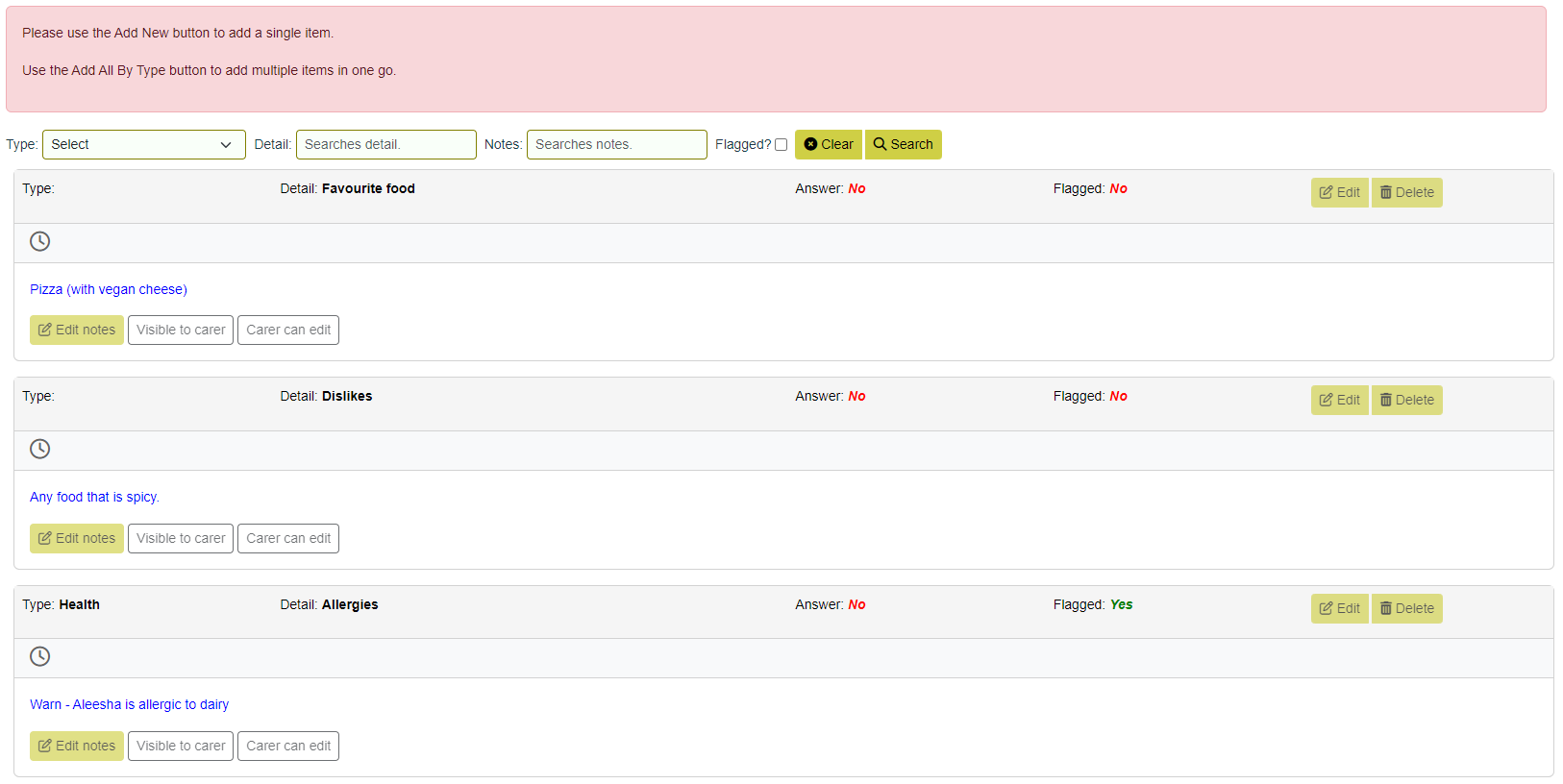
There are filters for the type of personal detail, the detail itself, the notes recorded against any personal detail, and a tickbox for any details that are warnings.
To make changes to existing Personal Details, click Modify then Edit or Edit Notes as appropriate. Where the detail no longer exists on the lookup list, only the notes will be editable.
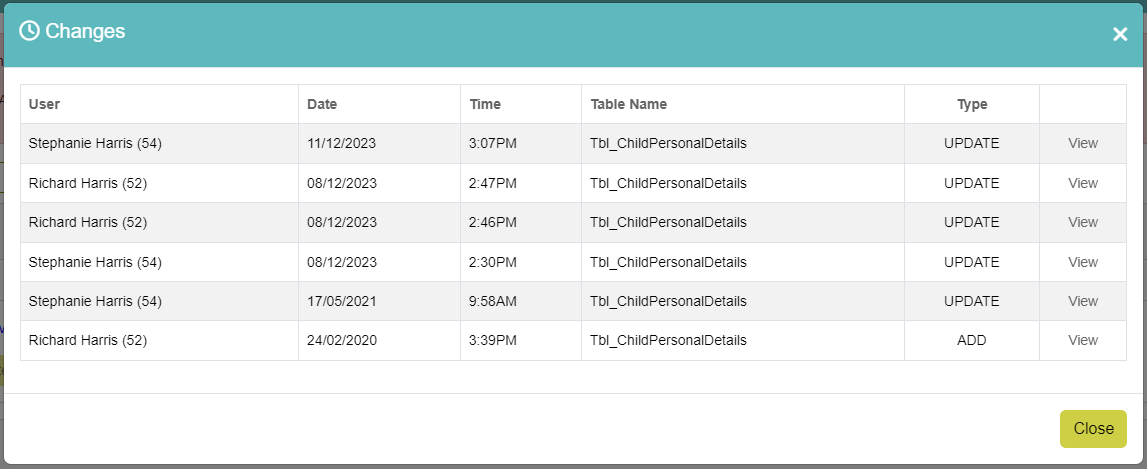
Clicking on the clock icon on any personal detail will open a box displaying any user changes that have been made.
¶ Add New Personal Details
To add a new Personal Details, click Modify and Add New at the bottom left of the screen. This will open the Add New popup:
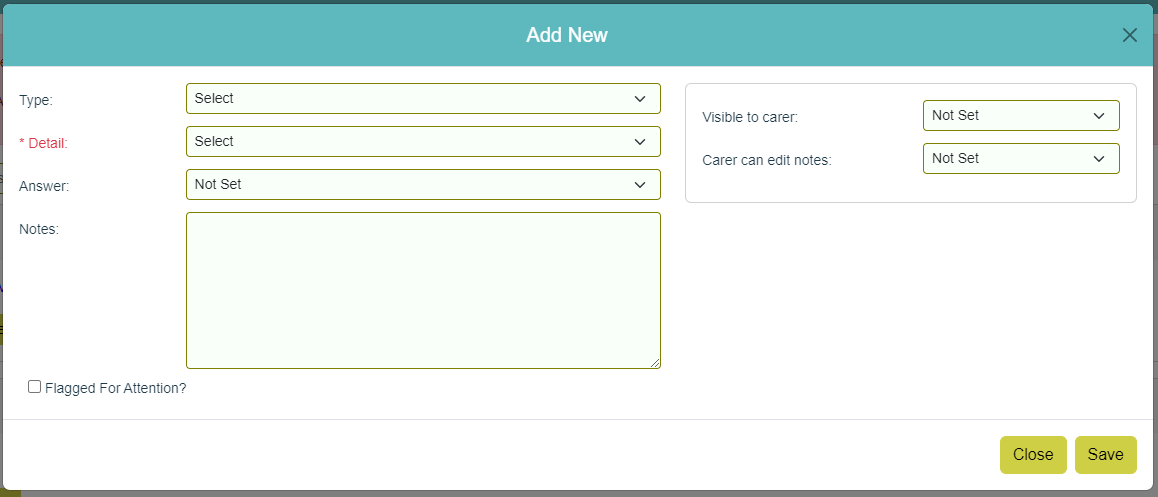
Choose a Type from the dropdown list. This will then filter the particular details available in the next dropdown box. (If Type is left empty it will be automatically populated depending on the Detail selected)
Choose a Detail and enter any notes in the appropriate field. There is also an answer drop down option if the questions can be Yes or No, and an option to make the information visible and editable to the carer, if your organisation is using the carer login.
Once you have added all the information, click Save at the bottom of the page.
¶ Generating Personal Details
At the bottom of the screen, there is the option to pre-populate the Personal Details screen with questions to answer. Click Add All by Type, then choose the type on the popup that opens.
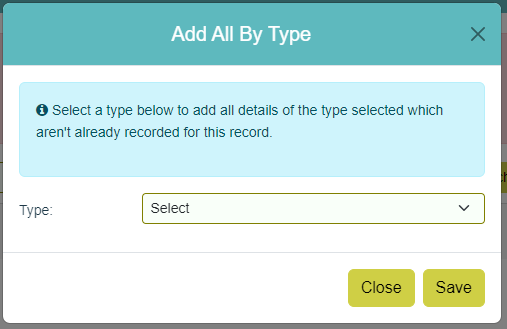
This will add in all the questions stored against that type in the lookup list to complete, in the order as defined by the lookup list sort order.
¶ Flagged Items
Ticking the 'Flagged for attention' box will mark the Personal Detail as requiring attention and a flag icon will then appear on the child’s Main Details screen, on the top menu next to their name:

The flag icon will also be displayed when looking at the child's record from the child Search screen:

If the personal detail has been set as 'Visible to Carer' it will also appear in the Carer Login, on both the Main Menu and on child's record:
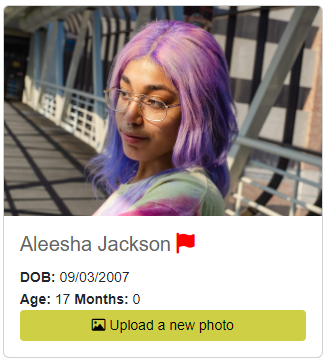
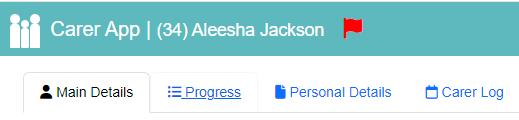
Clicking on this flag icon, wherever it is displayed, will open up a window with more details about the Personal Detail/s that require attention.
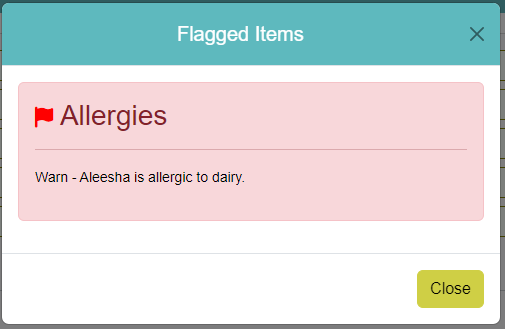
If your organisation wishes to change the colour of the flag icon they can do so via 'Settings' (on the top menu) > 'Manage Theme'. Please note that if no colour is set for the module logged into the flag will be output as yellow.
¶ Deleting Personal Details
If you have added a Personal detail in error and wish to delete it, press Delete against that particular entry, and then click OK at the confirmation prompt.
Please note: If an entry is recorded in Personal Details that no longer exists on the relevant lookup list, an information message will appear when the user clicks on the personal detail