¶ Settings - Assessment Checklist Setup
Only users with the ADMIN_SETTINGS access level can access this section
The Assessment Checklist Setup screen allows users to add, edit and remove actions onto the checklist list and stat check screens in children, staff and families respectively.
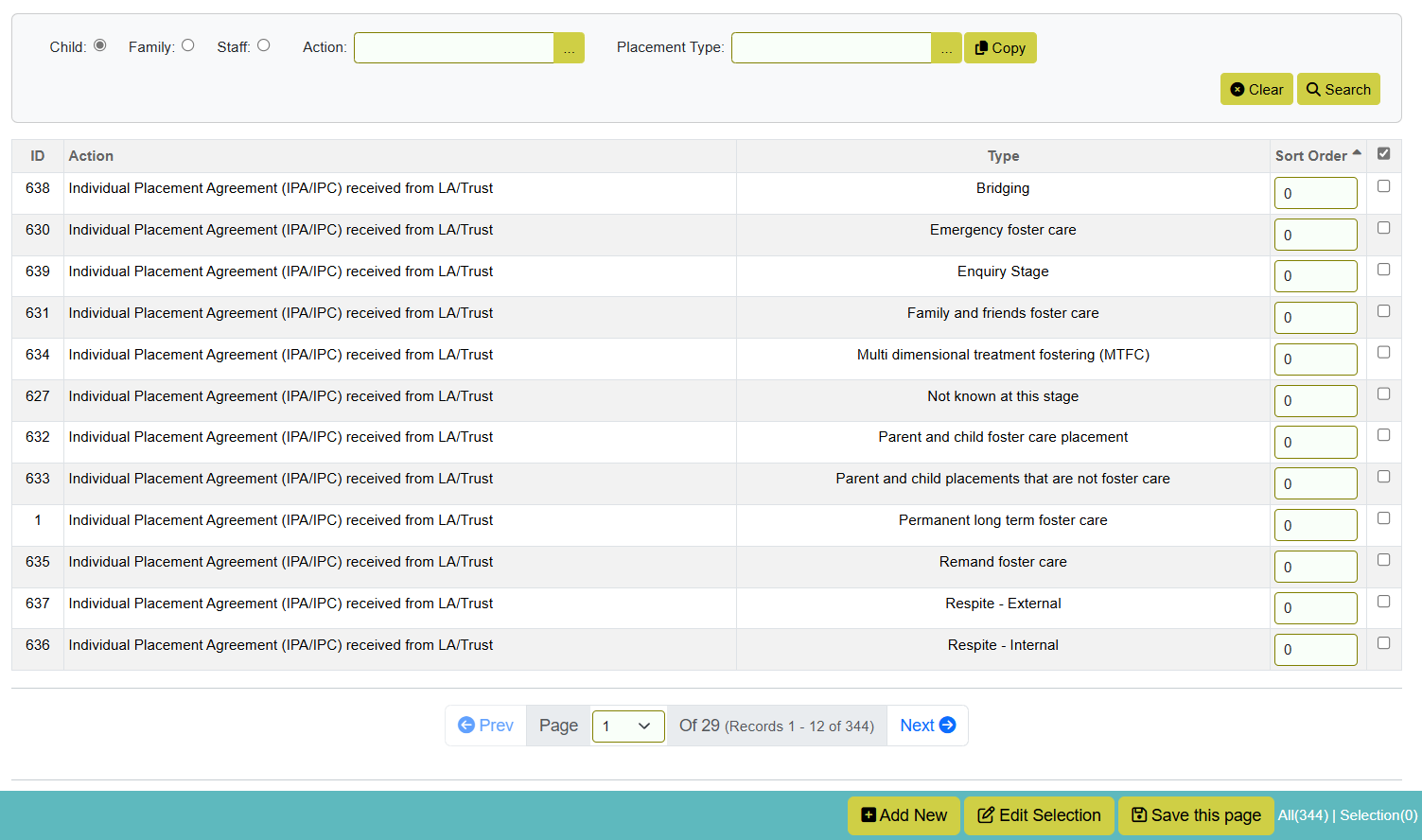
Filters at the top of the screen allow the user to toggle between the lists for children, families and staff, for particular actions, and for particular placement types or job types (for staff).
¶ Adding new actions onto a checklist
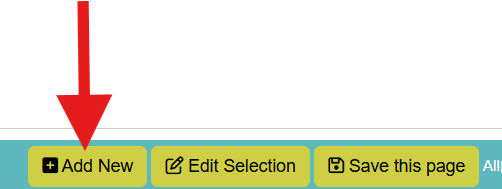
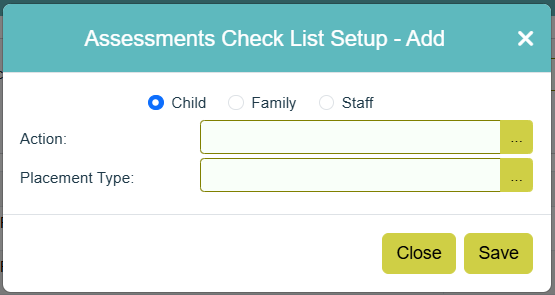
To add new actions onto a checklist, click Add New in the status bar. This will open the add popup.
Choose whether the child, family or staff list should be updated, then multi-select actions and placement types to be updated. Click Save to add the items.

Copying existing actions to another checklist
To copy an existing checklist setup to a new placement type, filter for the actions to be copied using the filters at the top of the Assessment Checklist Setup screen. Click Copy to open the copy popup.
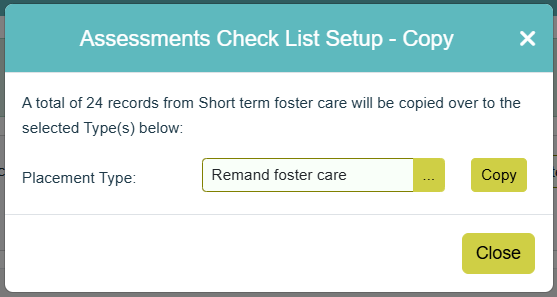
Multi-select the placement types to be updated, then click Copy to update the new placement types.
¶ Changing the sort order of existing actions
To edit the sort order of existing checklist action, enter a new value in the Sort Order column in the Assessment Checklist Setup screen.
¶ Replacing or removing existing actions
To replace or remove existing actions on the checklist setup, tick to select the actions required, then click Edit Selection in the status bar. This will open the Edit popup
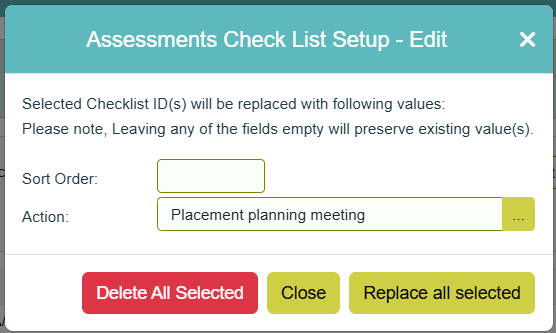
Enter either a new sort order for the selected actions, or choose a new action to replace the items selected, then click Replace All Selected into order to swap the existing actions and/or sort orders for the new values entered.
Alternatively, click Delete All Selected to remove the selected actions from all checklists.
¶ Reporting
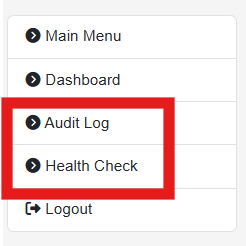
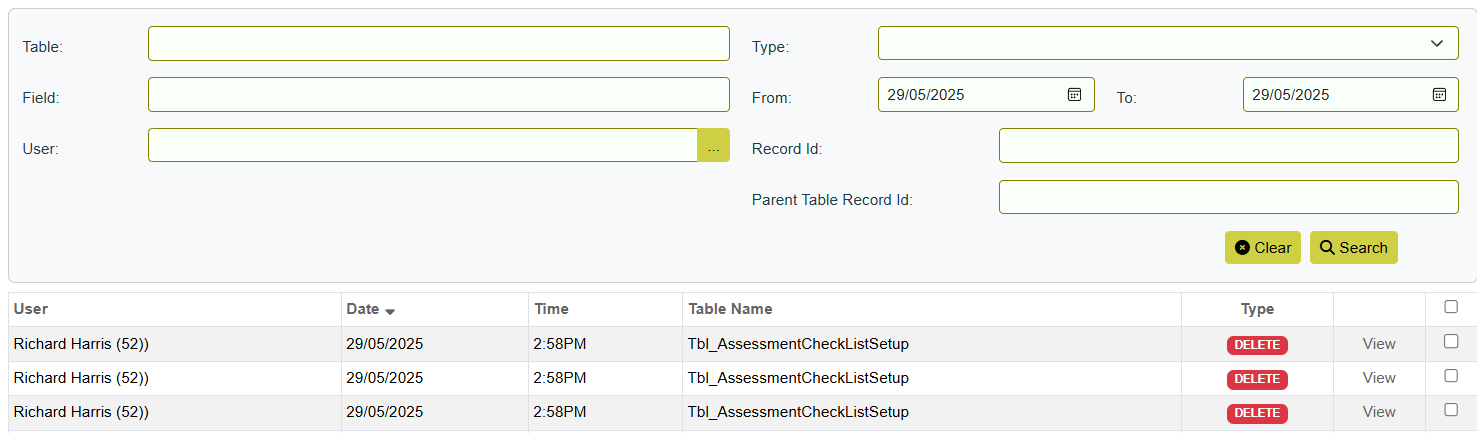
There are two reporting sections relating to the Assessment Checklist Setup on the navigation menu.
¶ Health Check
The Health Check screen shows several reports looking at gaps, omissions or inconsistencies in the checklist setup. Click the report name to view more details for each report.
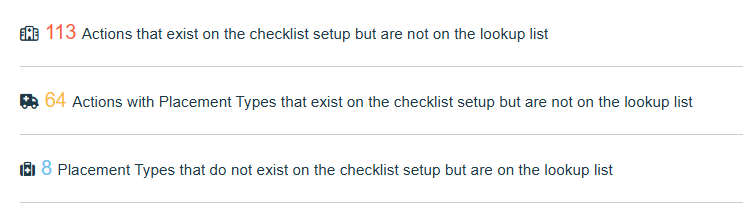
- Actions that exist on the checklist setup but are not on the lookup list - this report will show actions that are allocated to checklists, but no longer exist on the Action lookup list. This is generally as a result of changes made by User Manager but may cause confusion when actions cannot be recorded but the checklist suggests they should.
- Actions with Placement Types that exist on the checklist setup but are not on the lookup list - this will show where actions have been allocated to placement types on the checklist setup, but the placement type no longer exists on the lookup list.
- Placement Types that do not exist on the checklist setup but are on the lookup list - this will show placement types that do not yet have a checklist set up for them.