CHARMS contains a full Electronic Medication Administration Recording (EMAR) system.
This function is enabled via Settings > Enable EMAR. Speak to your account manager if your agency requires this function switching on.
Once switched on, relevant users will require new permission ‘MEDICATION_ADMINISTRATION’ to enable ‘Medication Stock’ on the top menu and to see the lookup lists Medicines, Medicine Classification, Medicine Formulation, and Administration Route, which need to be populated in order for CHARMS EMAR to operate.
These four lookup lists are set up as follows:
¶ Medicine Classification Lookup List
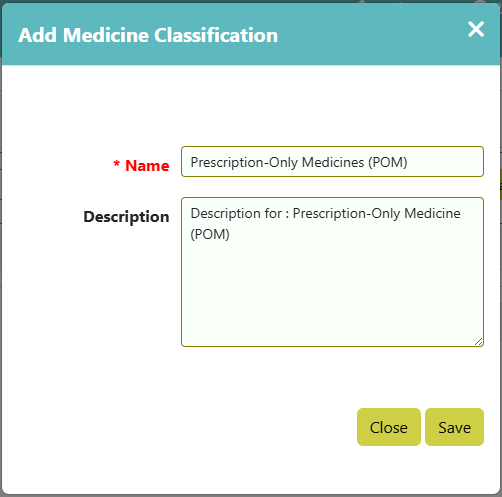
There are a number of specific categories of medicine that each have their own criteria for who can prescribe them and how they need to be secured. These can be added here as required as medicines of a particular classification are added. The Classifications applied here do not affect how they are handled in CHARMS, it is used to inform the responsible handler of the legal classification so they know how rigorously the medicine should be managed.
¶ Medicine Formulation Lookup List
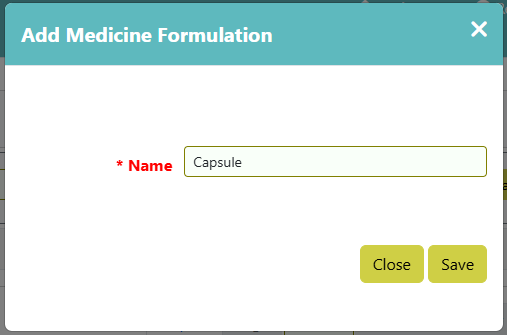
This is a list of the formulations that the medicine takes. This could be the method that the tablet breaks down (e.g. effervescent, slow release, or instant release), or the other mediums that the medication is contained (e.g. capsules, sachets, ointment, gel, liquid, or cream).
¶ Medicines Lookup List
This builds the specific information for each type of medicine. This will be used to populate whenever a new batch of this specific version of that medicine is added or dispensed. The majority of fields are flagged as mandatory to ensure the maximum amount of information is made available and nothing is accidentally left out. Some of these medicines will have no relevant information to add to a particular field, in which case enter “N/A”.
Over time, some information (e.g. interaction warnings or storage/disposal instructions) may change. This can be changed here, which will make sure any new batches received will already have the most up to date information.
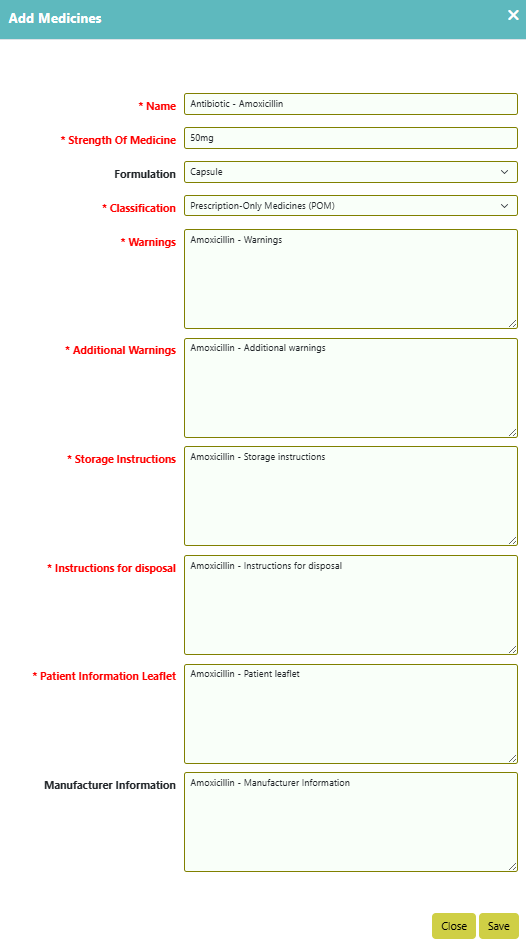
- Name: This will be the name of the medicine, which will be the brand name (e.g. Anadin) and/or the name of the active ingredient (e.g. Aspirin). Generic medication often has no brand name, so would just be the ingredient. Try to include both, if possible, as brand names generally cost more than generic medication, and also many people get prescriptions asking for one or the other. A very small number of people have adverse reactions to certain brands’ formulation, so sometimes it is vital to know which brand the medicine is.
- Strength Of Medicine: The is the amount of the active medicine in each dose. So, for example whether the tablet is 5mg, 10mg or 20mg of the medicine.
- Formulation: This sets the formulation of this medicine. See the Medicine Formulation Lookup List for more details.
- Classification: This sets the classification of this medicine. See the Medicine Classification Lookup List for more details.
- Warnings: Medicines will have a variety of warnings regarding interactions with other medication or food/drink on the box. This is where the important warnings that have to be obvious to the supplier are entered, to enable them to easily see what to avoid and what to advise to the recipient.
- Additional Warnings: Many medicines will have warnings that are lower priority, but should still be easily accessible.
- Storage Instructions: Many medicines have storage requirements to ensure it does not degrade before the expected expiry date. For example, they may need to be stored in a dry place below a certain temperature.
- Instructions for disposal: In general, unused and expired medicines should be returned to a pharmacy for proper disposal. There may also be more specific instructions to replace or expand the requirements for safe disposal.
- Patient Information Leaflet: This is the information in the paper leaflet included in every box of medicine. All of this needs to be entered as all of this information is legally required to be available to the patient. There may be some duplication with the information entered in earlier fields, however those other fields are intended to make the most relevant information more easily accessible.
- Manufacturer Information: This is not a mandatory field as it is rarely used. However, some manufacturers will require additional information be added regarding their version of the medicine.
¶ Administration Route
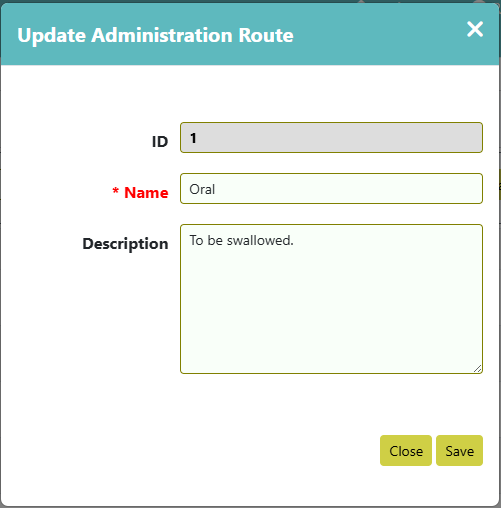
This is a list of the administration routes for all medicines. This is different from the formulation, as it defines how the medicine is used/applied. Some of the phrases may not be obvious to the user (e.g. Otic or Buccal), so there is the option to add a short description.
¶ Medication Stock
This section is used to manage stock and allocate it either to the Agency or a Family.

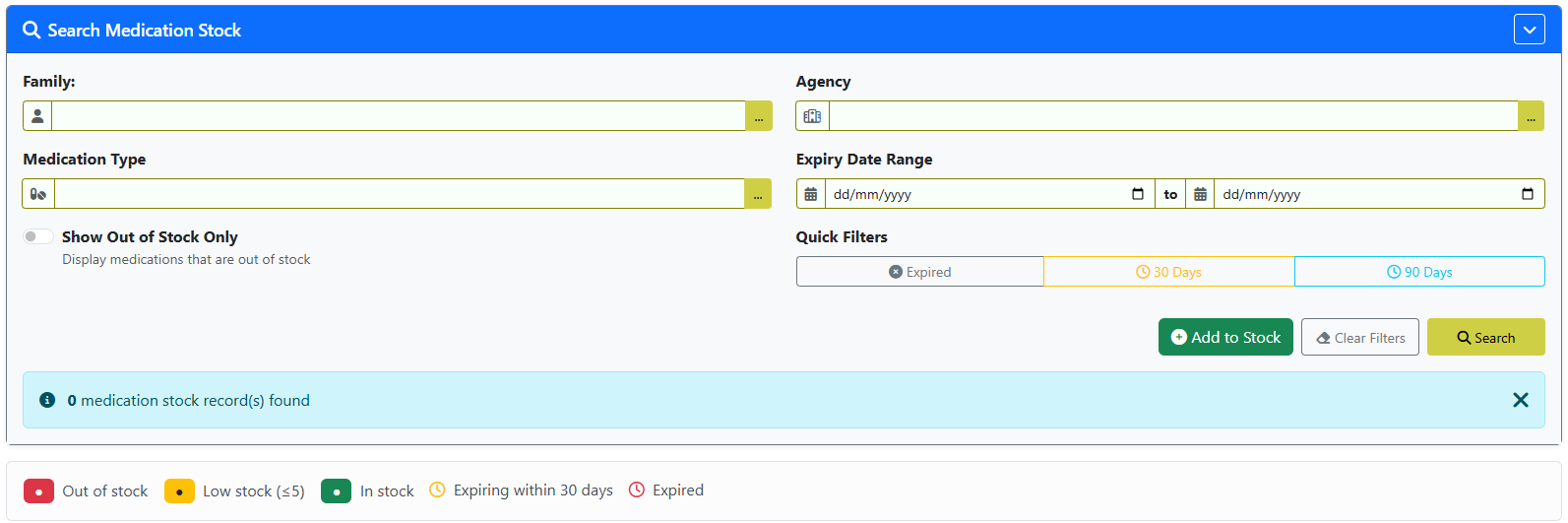
The current stock can be filtered to a specific Family or a specific Agency. Stock cannot be allocated to both a Family and an Agency, so do not filter to both.
You can also filter by the medication type (taken from the Medicines lookup list), this allows you to see all batches on record of that specific medicine. There is also an option to filter for stock that has an expiry date within a certain range.
There are two additional quick methods of stock management. Firstly, the is the “Show Out of Stock Only” option. Enabling this shows all stock that have now run out and can be deleted. Secondly, you can use the “Expired”, “30 Days”, and “90 Days” buttons to show which stock are expired or near expiration. This helps the user prioritise dispensing older stock, and dispose of any stock that is now expired and unusable.

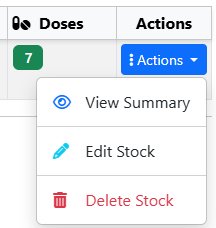
In the main results list shows the main information regarding each batch of the medicine stock. If more information is needed, you can access this in Actions>View Summary.
You can also edit existing stock in Actions>Edit Stock.
WARNING: This should not be used to add more medication stock from a new batch. The Batch Number and Expiry Date must be accurate to all medicine in this stock, so this option is only for either fixing data input errors, or in the unlikely event that more stock is added with the same batch number or expiry.
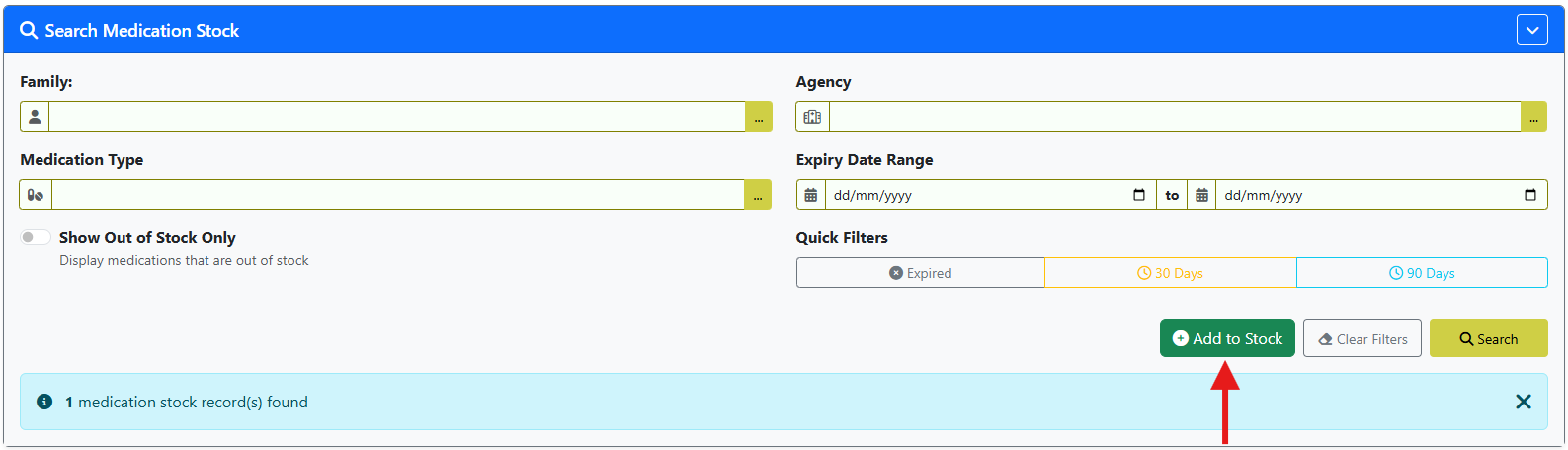
The Add to Stock button is used to book in any new medication stock received. The majority of information is populated when the Medicines is selected. You can then enter the other information, all mandatory fields have to include accurate information. Most of this is covered under the Medicines Lookup Lost, but some may require clarification.
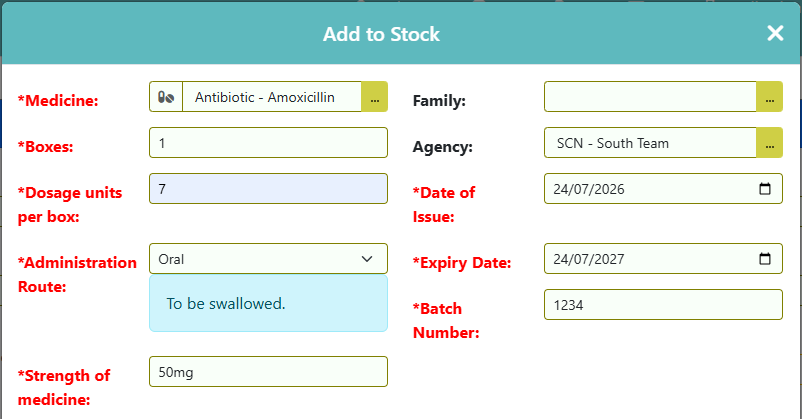
- Boxes: Entering the number of boxes helps calculate the number of doses in the batch without having to manually calculate it.
- Dosage units per box: This is usually the number of tablets per box, but in some cases (e.g. a liquid) you will need to enter the number of doses of that medicine will be in the bottle. So, as an example, if a bottle advises to use a 5ml spoon and the bottle is 30ml of the medicine, there are 6 Dosage units per box.
- Administration Route: This is different from the formulation, as it defines how the medicine is used/applied. Some of the phrases may not be obvious to the user (e.g. Otic or Buccal), so when selected there is a short explanation added below.
- Batch Number: This is important information on the box that differentiates each production batch from another. The reason this must be included is that very rarely there is a recall of a batch. If notified of a recall you can easily find and remove stock from that batch.
- Family: If the medication is being added to a family's medication stock, select the family here.
- Agency: If the medication is being added to an agency/organisation's medication stock (e.g. residential home), select the agency/organisation here.
¶ Family - Medication Stock
From a family record, on the left-hand menu click ‘Medication Stock’.
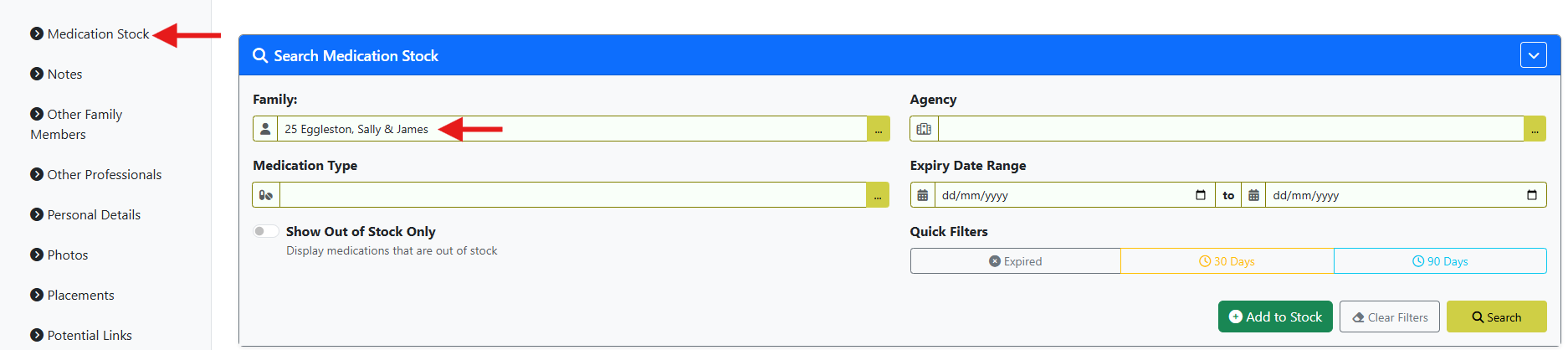
This operates the same way as the main Medication Stock page, but pre-filtered to the current Family.
¶ Child - Medication
From a child record, on the left-hand menu click ‘Medication’.
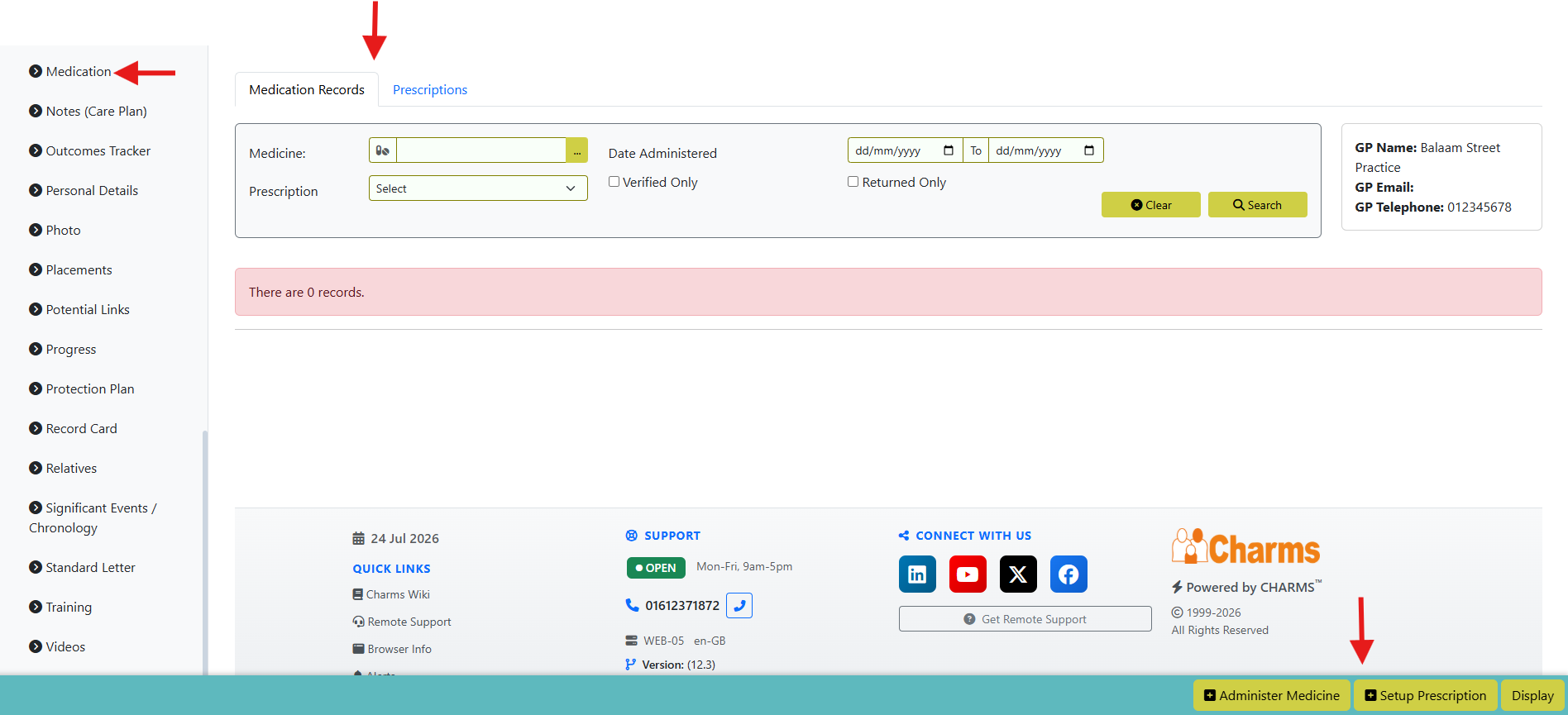
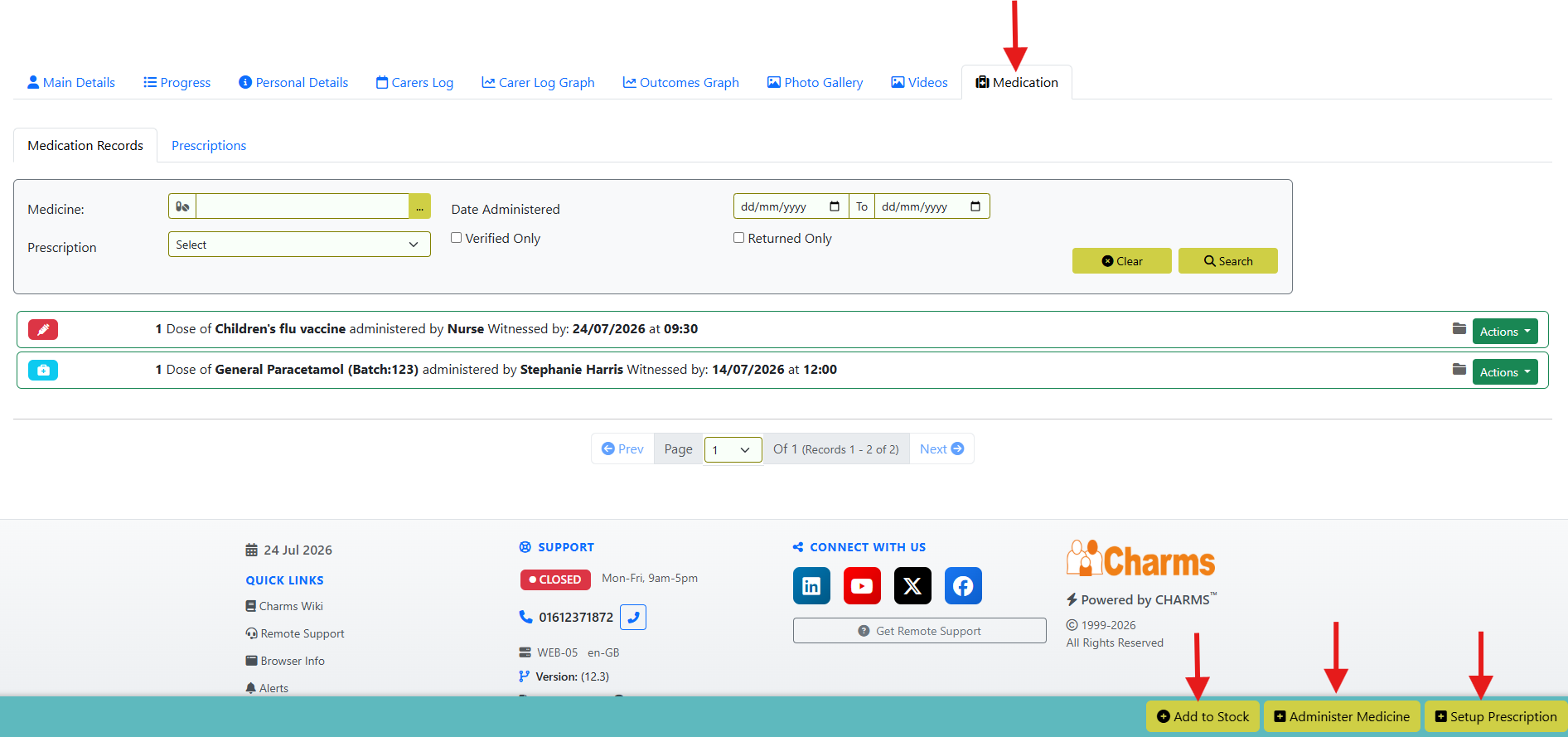
This page has two tabs and two buttons on the footer that are used to administer medicines or to log prescriptions.
Administer Medicine:
There are 4 methods that medicine can be administered, which changes some of the information needed.
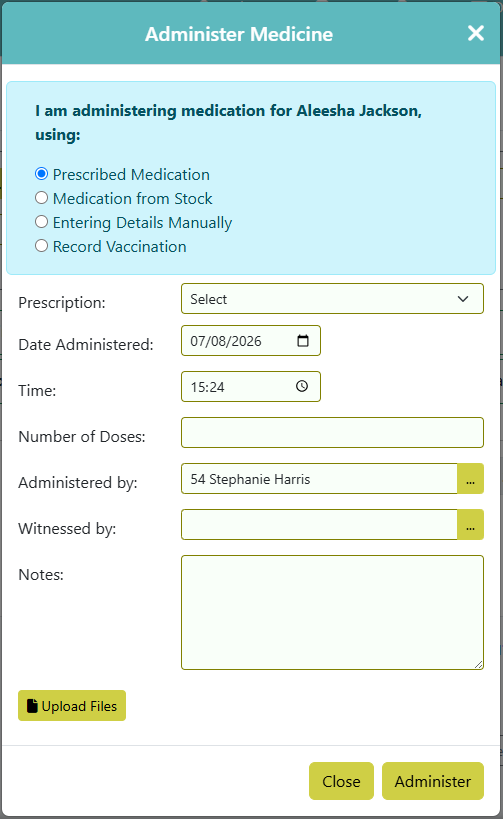
- Prescribed Medication: Once a prescription has been set up you will be required to select which prescription you are administering, at which point the available batches of that medicine are shown. Select the correct number of doses from the available batches (it is best practice to use whichever has the closest expiry date), if there are not enough doses available from one batch then it can be taken from multiple batches. Enter all of the other information as applicable.
- Medication from Stock: Not all medicines require a prescription and can be bought over the counter. Choose the batch of medicine that you are using and enter all of the other information as applicable.
- Entering Details Manually: While it is best practice to log all stock, there may be situations where medicine has been bought and used that has not been added to stock. All the details of the specific medicine will need to be entered, although some will be populated when the Medicine has been selected.
- Record Vaccination: This is used in a similar way to “Entering Details Manually”, as vaccines are normally kept and administered by pharmacies and so would not be in stock. This does have one important difference to the other methods, in that the “Administered By” field is handled differently. We would not expect a carer to be the one to administer the vaccine, so the type of person who administered the vaccine is selected and any additional relevant information can be added to Notes.
On all of the above options you have the ability to upload supporting files by clicking the ‘Upload files’ button.
Setup Prescription:
This section allows a user to enter the details of a prescription, which can then be used to more easily log when that medication has been administered. It is also used to remind when a prescription is overdue to be administered.

The Medication is selected from the Medicines Lookup List, and then the Dosage per administration is entered (e.g. is the instructions are to take 2 tablets 3 times a day, the Dosage would be 2). Related to this, the Number of intervals is the number of times per day the medicine is to be administered (so, in the above example, 3). You then set the time for each interval, which allows you to track if a medicine is overdue.
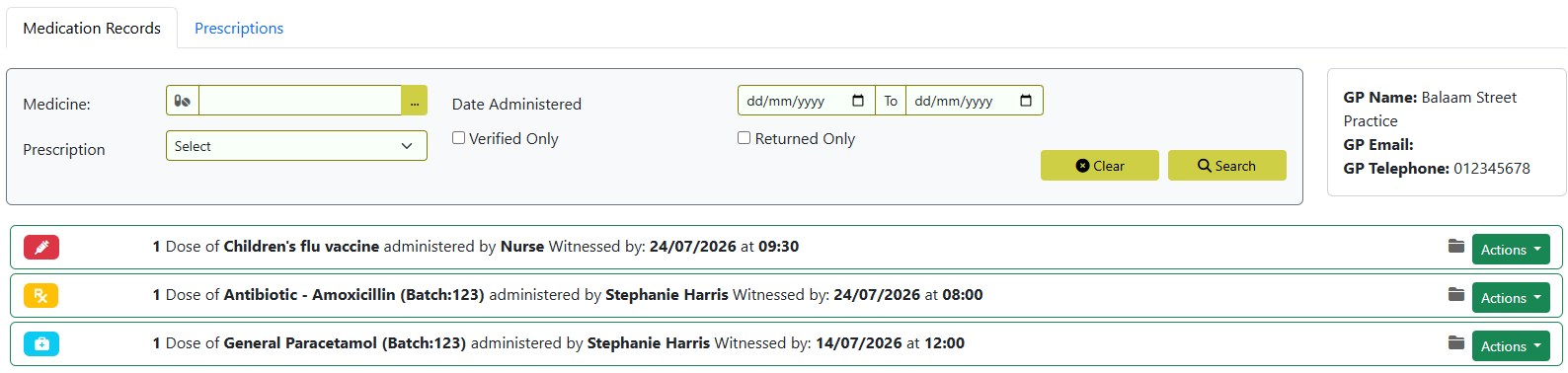
Medication Records
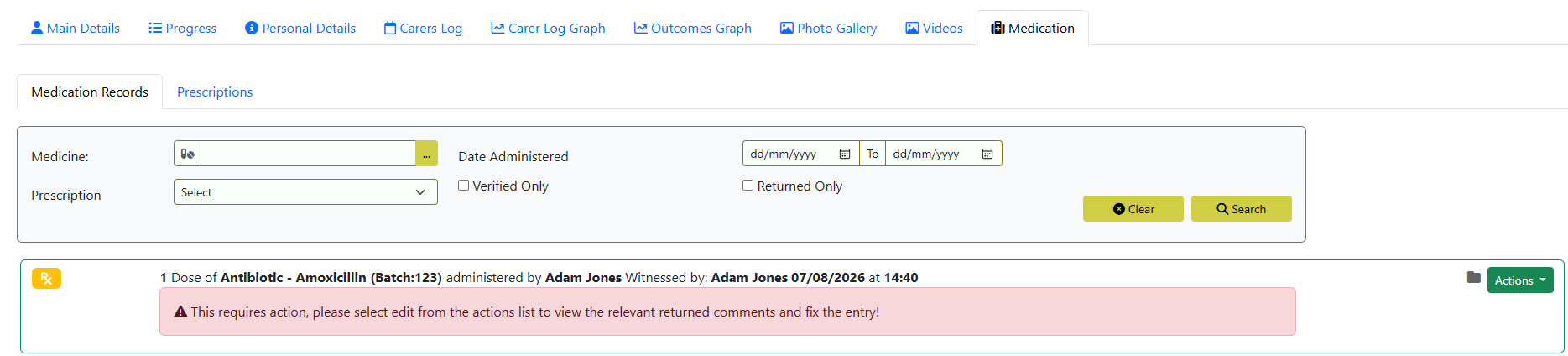
This tab lists every time a medicine was administered. The icon shows whether it was a prescription (orange), administered without prescription (blue) or a vaccination (red).
Prescriptions
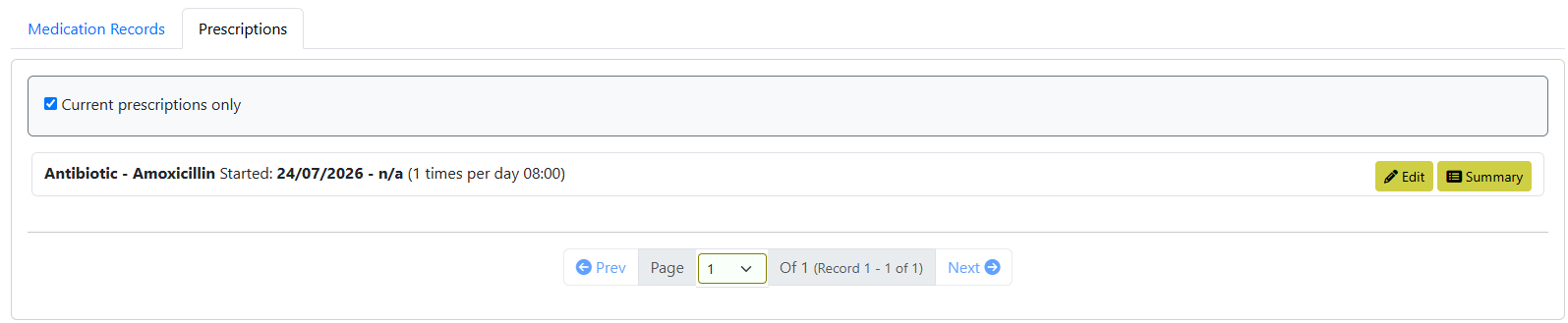
This page shows all prescriptions logged against that Child. Edit should be used to fix any data errors, new prescriptions should be added using the Setup Prescription button on the footer. The Summary button includes a record of each time it was administered and a reminder of when the next dose will be needed (if applicable).
¶ Main Menu > Alerts > Medication Due Today
Users with the MEDICATION_ADMINISTRATION permission will see the alert ‘Medication Due Today’ that will show the number of medications that are due to be administered today.

Clicking on this alert will open the 'Medication Due' screen. Here users can record the fact that medication has been administered by clicking ‘Administer’.

¶ Main Menu > Alerts > Recent Medication Administered
Users with the MEDICATION_ADMINISTRATION permission will see the alert ‘Recent Medication Administered’ showing medication administration records from the last 7 days that are awaiting verification.

Authorised users can review, verify and return back to carers with a note (if required) directly from the Medication Administered review screen. Users can also download or view files, and export the results to e.g. Excel or PDF.
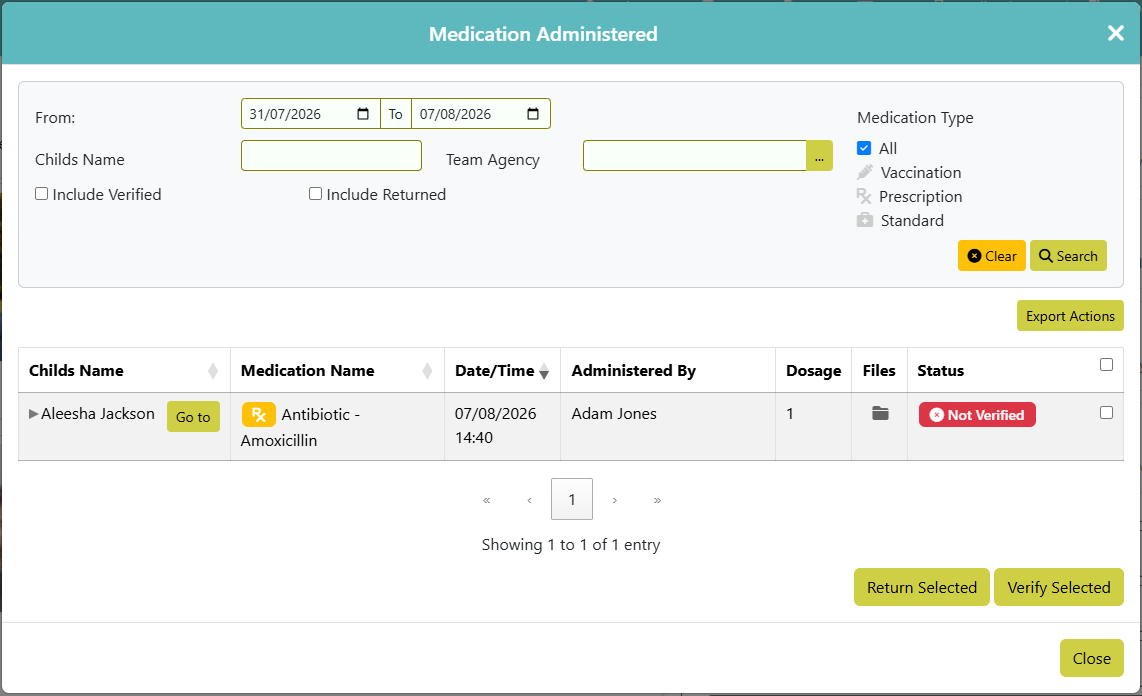
Via the Carer Login > Child > Medication section, any ‘Medication Records’ that have been returned by the agency will be indicated clearly.
¶ Main Menu > Caseload > Families > View > Medication
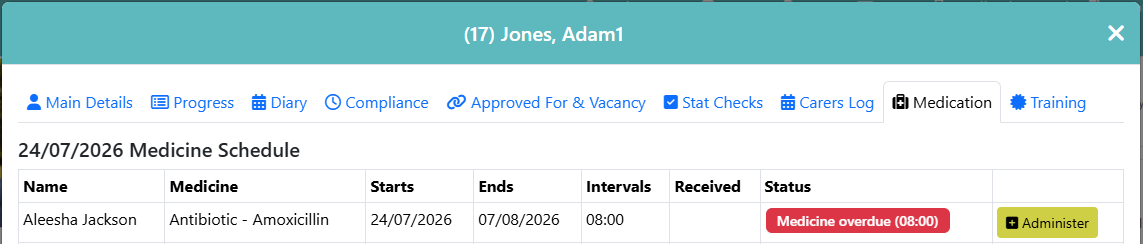
This logs the details of all current prescriptions logged under that Family. The current status of the next prescription dose to be administered is shown under Status, this flags whether a dose is overdue and when it should have been administered. If a prescription is overdue, there is also an Administer button that allows you to administer a dose of that specific prescription.
¶ Main Menu > Caseload > Children > View > Medication
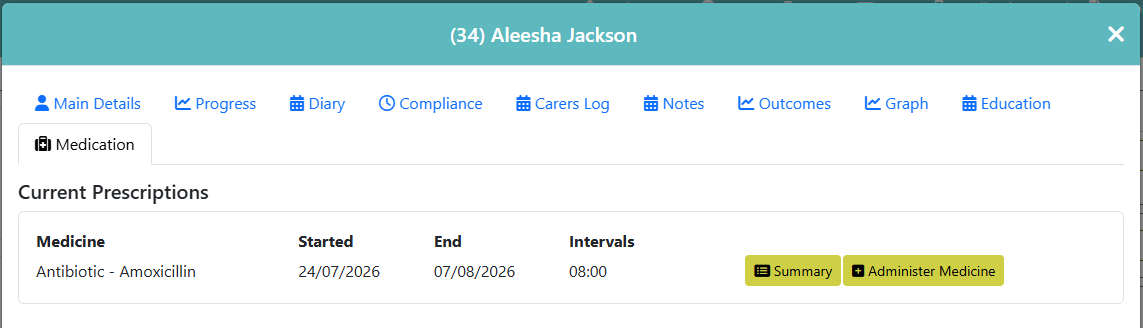
This logs the details of all current prescriptions for this child. The Summary button will give details and warns if a prescription is overdue. There is an Administer Medicine button that allows you to administer a dose of that specific prescription.
¶ Carer Login > Child > Medication
This operates the same way as Child/ Medication with an additional “Add to Stock” button on the footer. This works in the same way as administering medication using the “Entering Details Manually” option.