Before any data will show on the ‘Recruitment’ widget, your agency must first setup/define which actions should be output on the new widget. These would be the key stages/milestones of the recruitment/assessment process that are required prior to being ‘Approved’, must include the start of the process e.g. ‘Notified’ and the order must also be defined.
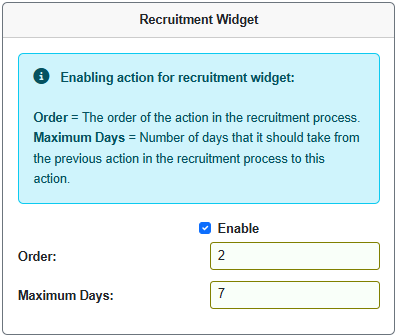
Within 'Settings’ > ‘Actions’, users with the EDIT_LOOKUP_LISTS permission can set up the following for each ‘Recruitment’ widget action:
Enable – enter a tick to show on the Recruitment widget.
Order – Enter the order of the action in the recruitment process.
Maximum Days – Enter the max number of days that it should take from the previous action in the recruitment process to this action.
Once the actions are defined as above, the ‘Recruitment’ widget will show 2 tabs, ‘List’ and ‘Chart’.
‘List’ will output family records that are in enquiry stage (no approved date, and not archived/withdrawn) and they also must have at least 1 of the recruitment actions setup, e.g. Notified.
‘Chart’ will show a count of enquiries by month, using Notified (enquiry) date on family main details, by default, for the last 12 months. Filter by team agency or enter dates if required.
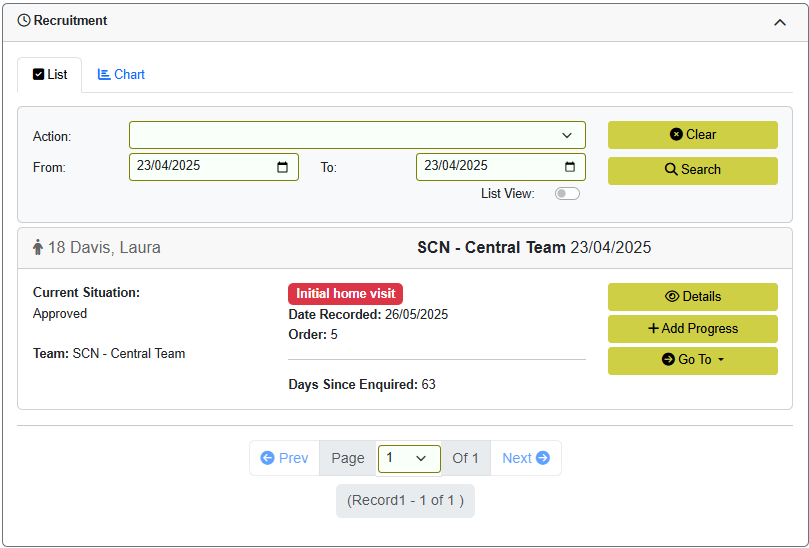
The Recruitment widget shows:
- Current Situation
- Team — Agency Name
- Enquired — outputs the date against the enquiry (date notified) on family main details
- Days Since Enquired — Calculates and outputs the number of days since the date enquired (date notified) on family main details to the current date
- The action output is the latest recorded 'Recruitment Widget' action
You can see the details of where they are in the recruitment/assessment process by clicking ‘Details’. This clearly indicates which of the recruitment actions are recorded (output green), and those that are yet to be recorded (output red), giving an indication of where they currently are in the process.
Clicking ‘Details’ shows each of the recruitment/assessment process actions in the order that has been defined in the action lookup list.
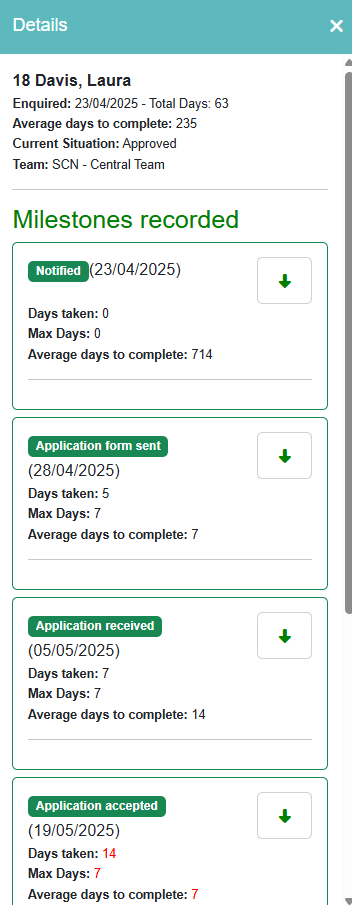
- Days taken — This is calculated using the date of this action and the date of the previous action. Note: the action that has been setup as the start of the recruitment/assessment process e.g. Notified, the days taken will always be output as 0 as there are no previous actions recorded.
- Max Days — This is set in the action lookup list (see above) and represents the expected maximum number of days it should take between the date of this action and the date of the previous action.
- Average days to complete — This is calculated using all families in the module that have this action recorded and the previous action recorded. The last action defined, will get the average days to complete by looking at the ‘Approved’ action.