Once you have logged in to CHARMS you will be taken to the Main Menu.
¶ My Account
- Clicking on 'My Account' takes you to My Account.
¶ Logout
- Always remember to click log out when you are finished using CHARMS by using the button on the top menu.

¶ Records Counts
- 'Children' displays the total number of children in CHARMS. Clicking the number takes you to the Search - Child screen.
- 'Families' displays the total number of families in CHARMS. Clicking the number takes you to the Search - Families screen.
- ‘Enquiries’ displays the total number of enquiries in CHARMS. Clicking the number takes you to the Enquiries - Search screen.
- 'Contacts' displays the total number of contacts. Clicking the number takes you to the Contacts - Search page.
- ‘Agencies’ displays the total number of agency/local authorities in CHARMS. Clicking the number takes you to the Agency screen.
- ‘Staff’ displays the total number of staff in CHARMS. Clicking on the number takes you to the Staff - Search page.
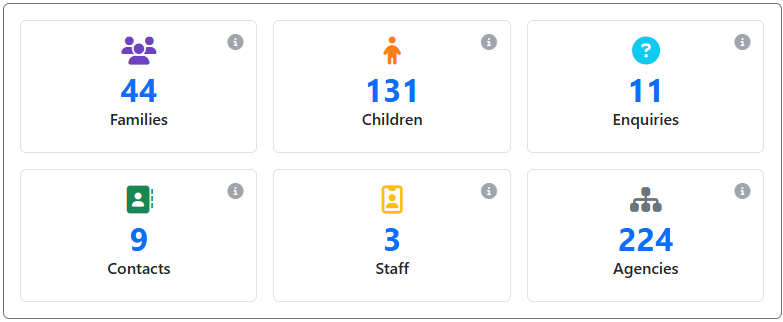
Hovering over any of the grey ‘i’ icons will display a brief description of the record type.
¶ Alerts
- Users with the permission VIEW_CARER_LOGS and a linked social worker record will see an alert for unverified logs added by carers in the Alerts widget.
- Users with the permission VIEW_CARER_PROGRESS will see progress added by carers against children and family records. In the alerts widget this will come under Carer Progress (progress added by carers against their own record) and Child Progress (progress added by carers against child records).
- Diary Reminder alerts are visible to users with VIEW_DIARY permission. The first count indicates how many diary reminders are due for your user in the next seven days. Click the link to view these items in the diary. The second count indicates the number of diary reminders for all users in the module logged into.
- The 'Unread Progress Comments' alert will show a count of any Comments you have been tagged into, that are unread against progress records in the module logged into.
- Progress Items to Sign - To see any progress actions awaiting your signature.
- A count of Data Retention requests that have not yet been authorised will be displayed here for users with the permission. DATA_RETENTION_AUTHORISER.
- The 'Potential Links' alert will show potential links in the last number of days. Clicking on this alert will pop open a details screen. The Potential Links alert is configurable in My Account > User Preferences for each user with the MODIFY_ALL_REFERALS permission.
- The ‘Progress Notifications’ alert will show a count of how many new actions match your Progress Notification settings (set up in My Account > User Preferences). Clicking on the alert will open the Progress Alert Notifications screen that gathers all relevant progress actions across all record types into one place. Each item shows record details, action taken, progress notes, who entered it, verification info, and any attached files.
- Users with the permission ‘MEDICATION_ADMINISTRATION’ will see the ‘Medication Due Today’ alert, showing the number of medications that are due to be administered today.
- Users with the permission ‘MEDICATION_ADMINISTRATION’ will see the ‘Recent Medication Administered’ alert, showing medication administration records from the last 7 days that are awaiting verification.
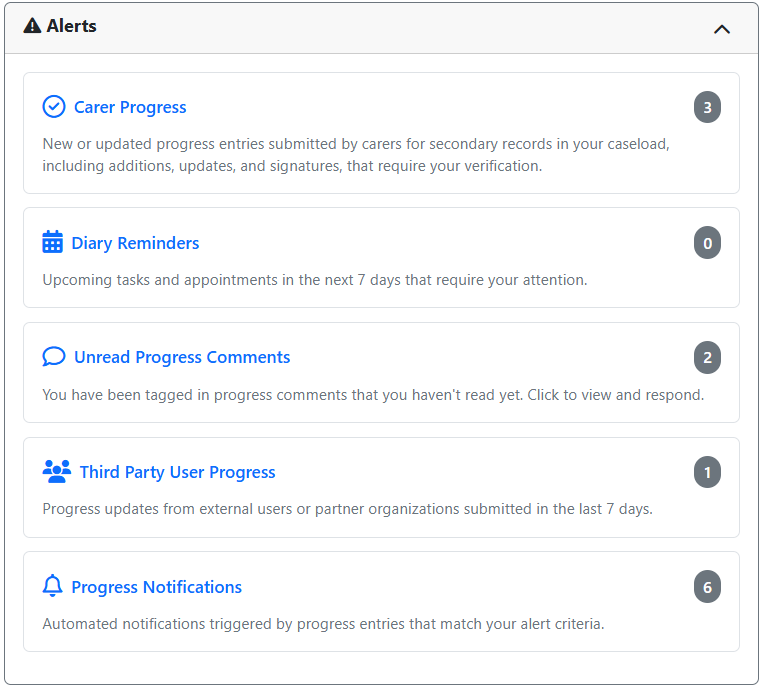
Alert counts use colour to indicate volume:
- Neutral (grey): 1–9
- Warning (amber): 10–19
- High volume (red): 20+
Alerts requiring immediate action (e.g., 'Progress Items to Sign') are highlighted with a red border.
¶ Recently Accessed Records
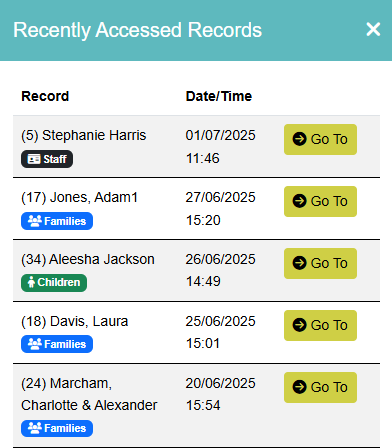
Clicking 'Recent' on the top menu will pop open the Recently Accessed Records side panel. Displayed here are the last 20 records you have accessed, along with record type, and the time/date they were accessed. Clicking the 'Go To' button on any recently accessed record will give you the option to go to either Main Details, Progress, Placements, or Diary.
¶ Reports
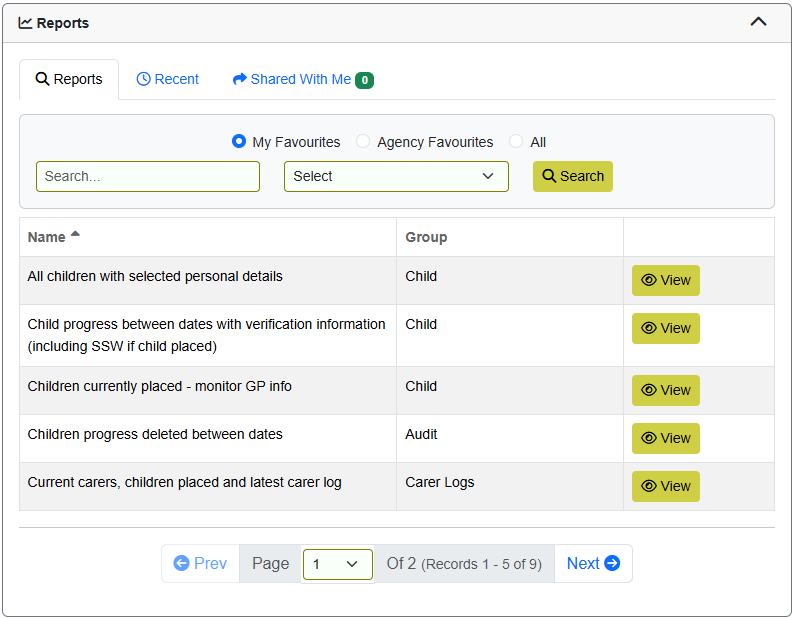
- The 'Reports' widget enables you to run various reports to extract information from CHARMS.
- Clicking 'Vacancy List' will open a report of carers with vacancies.
¶ Side Panel
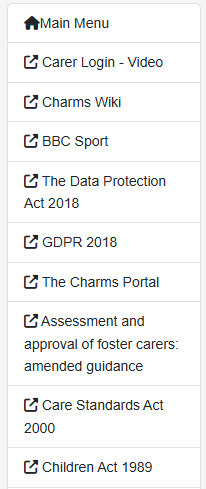
- This side panel contains a link back to this page ('Main Menu'). It also contains any links that have been set up within the Manage Links section of CHARMS.
¶ Options
- Depending on your access levels (set by your organisation), the options that you will see here will vary. Links in this section will take you to various areas of CHARMS, including Manage Signatures.

¶ Footer / Helpful links
Here you can find links to:
- This Wiki
- Remote Support - Our support staff may ask you to click on this link when providing support to you.
- Browser Info - Displays information regarding your web browser. Our support staff may ask you to click on this link when providing support to you.
- Alerts - Takes you to the Alerts page of this Wiki, where any current CHARMS issues or downtime are logged.
- Release Notes - Here you can find and download CHARMS release notes for reference purposes.
- You can also find links to our YouTube channel and various social media pages.

¶ Compliance
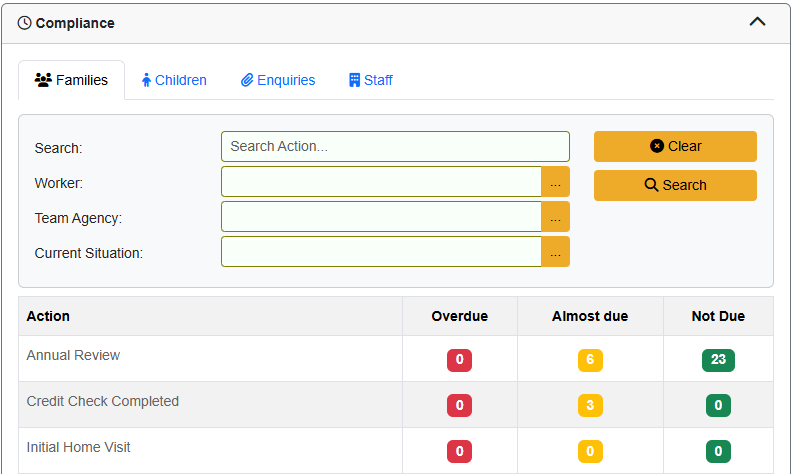
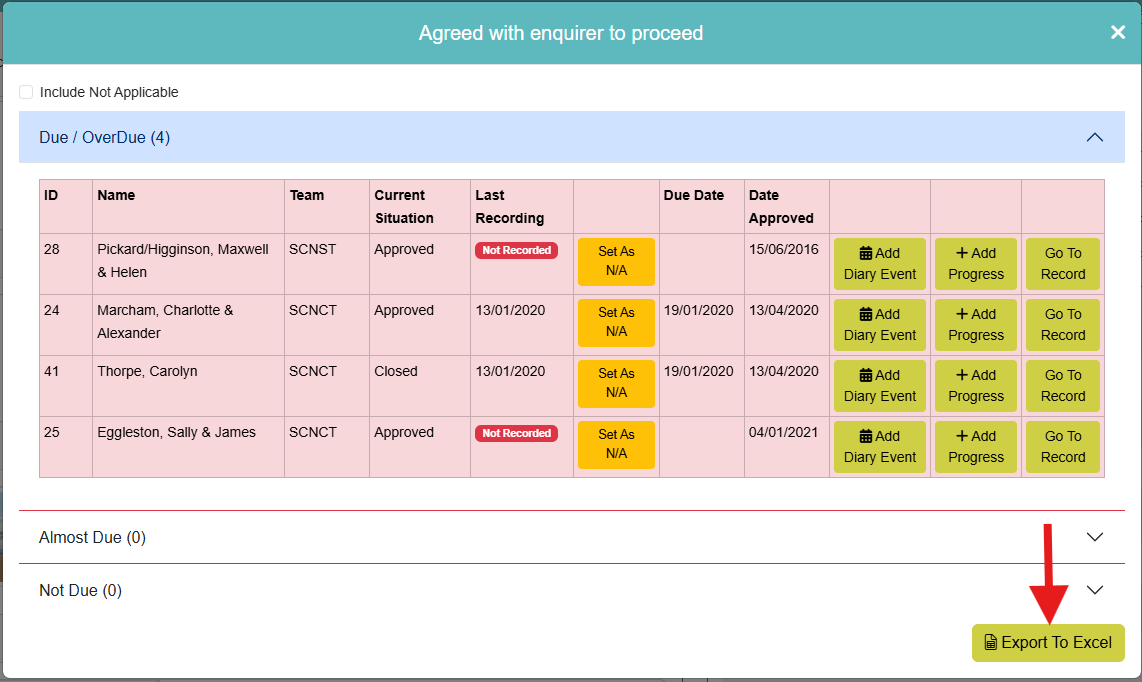
The 'Compliance' widget gives you the ability to monitor actions for being ‘Not Due’, ‘Almost Due’, and ‘Overdue’. In your 'Action’ lookup list each progress action can be marked as ‘Enabled’ in the Compliance Widget box. This will make the progress action appear in the new Compliance Widget on the Main Menu. For every action you can set the number of days old an action can be before it is displayed as ‘Overdue’ (which will be shown in the red ‘Overdue’ column) and how recent an action can be in order to still be classed as ‘Not Due’ (shown in the green ‘Not Due’ column). Actions falling between these two periods will be classed as ‘Almost due’ (shown in the amber ‘Almost due’ column).
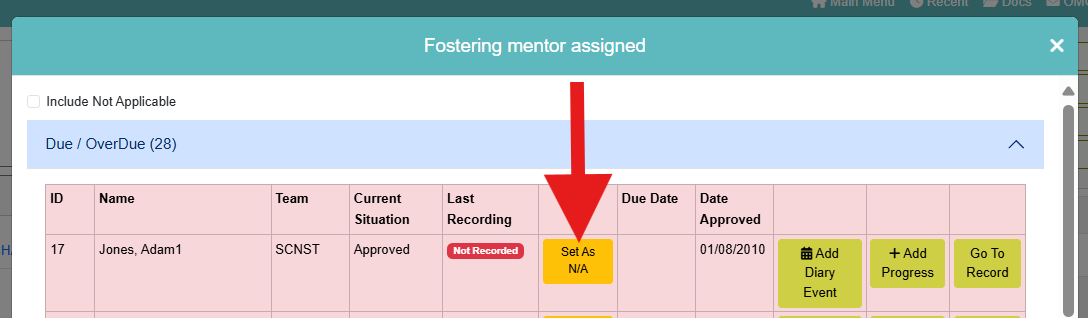
You can mark actions as N/A directly from the compliance details popup screen via the “Set As N/A” option. Once marked, those actions will no longer appear in the compliance results or counts. An option “Include Not Applicable” is available at the top of the popup screen - tick this box to view actions that have been set to N/A. From there, you can also remove the N/A setting if needed via the new “Remove N/A” option. If the compliance widget action is already marked as N/A via the records checklist and stat checks screen, this will be reflected on the compliance widget. For information on how to setup the compliance widget, have a look at the Edit Lookup List wiki page.
To export results from the compliance widget simply click the ‘Export to Excel’ button at the bottom of the compliance details popup. This will create an .xlsx file containing all of the compliance results you are viewing.
¶ Reports
The ‘Reports’ widget gives you the ability to run reports directly from the Main Menu. The widget will default to your ‘favourited’ reports, but you can also search for any report using the search box and report group dropdown, or alternatively, look for recently run reports in the ‘Recent’ tab, and reports that have been shared with you in the ‘Shared With Me’ tab. Setting favourites and amending reports must still be done from the main reports area.
¶ Documents
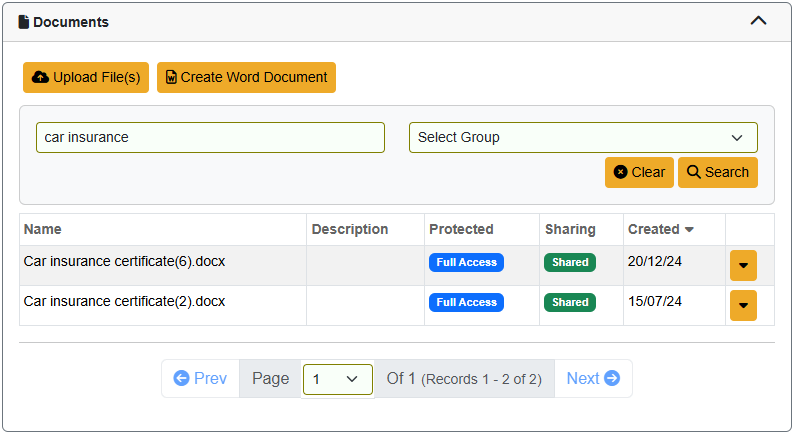
The 'Documents' widget enables quick access to documents stored in the CHARMS Document Store with basic details about each document. From here you can also upload files and create Word documents, just as you can in the Document Store.
¶ Notice Board
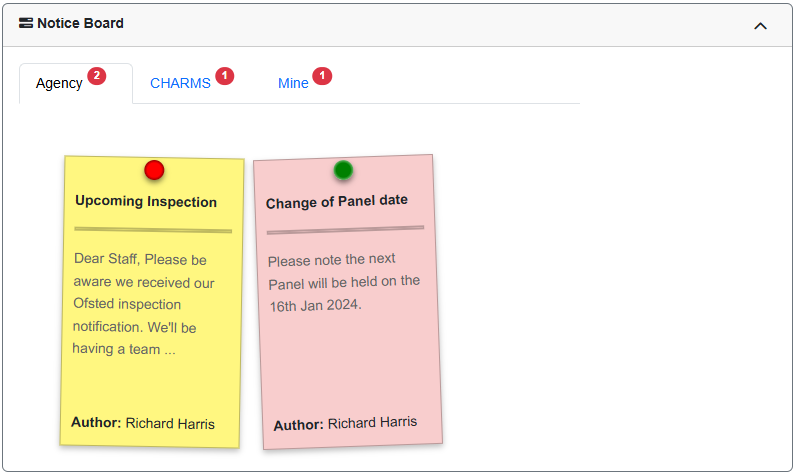
The 'Notice Board' widget enables agency users to post Notices to be seen by whoever they choose (all staff, panel members, carers, etc).
Social Care Network can also post notices to our customers (for example, a notification of an update to CHARMS) and users can post notices to themselves.
¶ Caseload
The Caseload widget is where you can view a particular worker's caseload, for example, all families who are allocated to you.
If a record has a Personal Detail recorded that has been marked as 'Flagged for attention' a flag icon will be displayed next to their name. Clicking on this flag will open a window with further details.
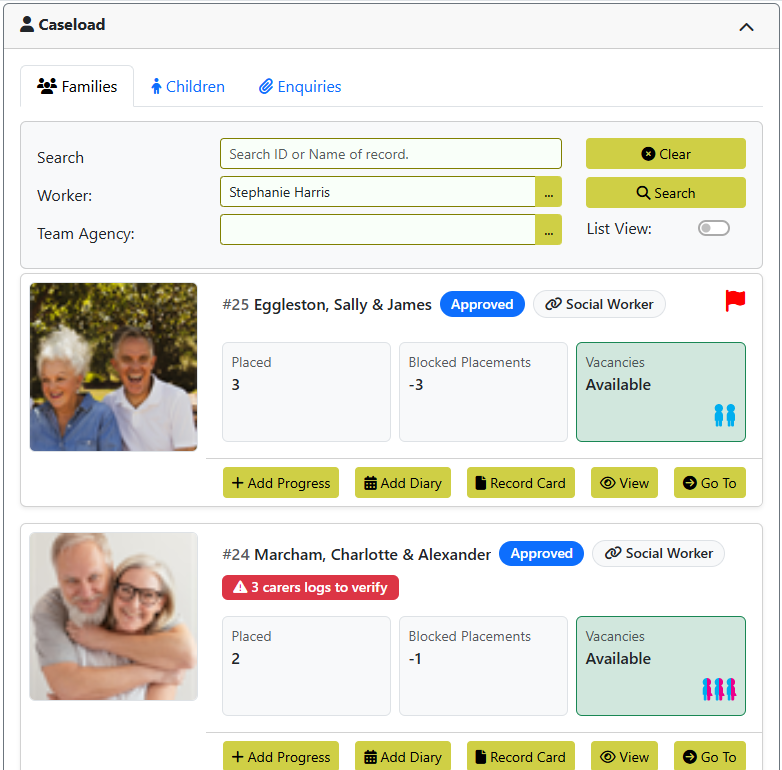
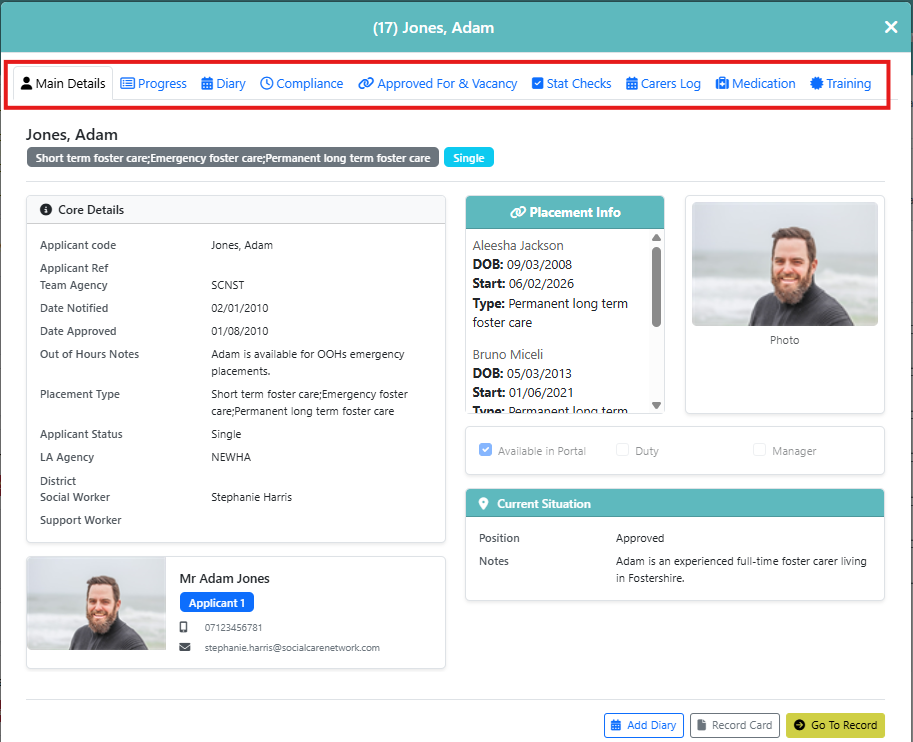
By clicking ‘View’ on a record you can also view their main details, quickly jump to key areas of a record, add a new Diary entry, view Progress and Logs, open the Record Card, and more.
¶ Progress Workflow widget
The Progress Workflow widget helps teams track and complete follow-up actions more easily and reliably.
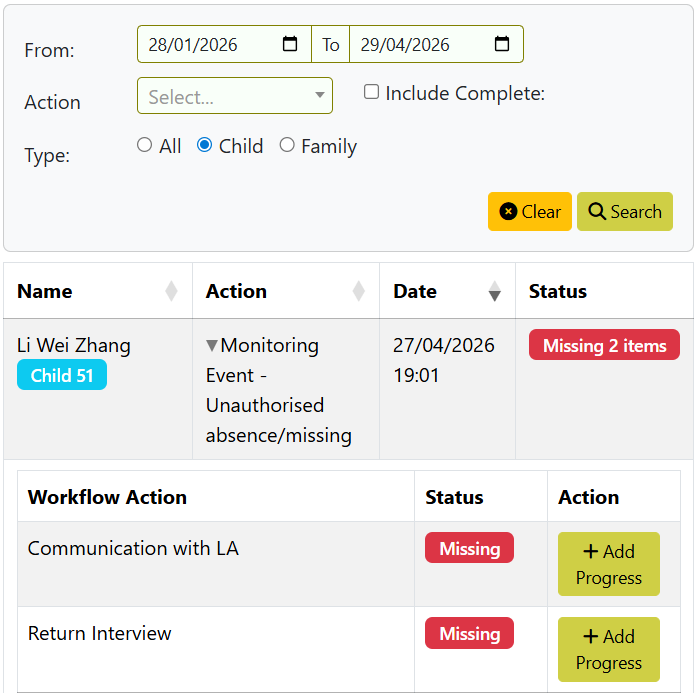
Master progress actions and the subsequent follow-up actions have to be defined in the action lookup list.
¶ Recruitment Widget
The Recruitment widget gives users the ability to track important milestones in their recruitment process. Once set up, clicking 'Details' in the Recruitment widget will open a side bar of the Progress milestones and how long each stage has taken to reach.
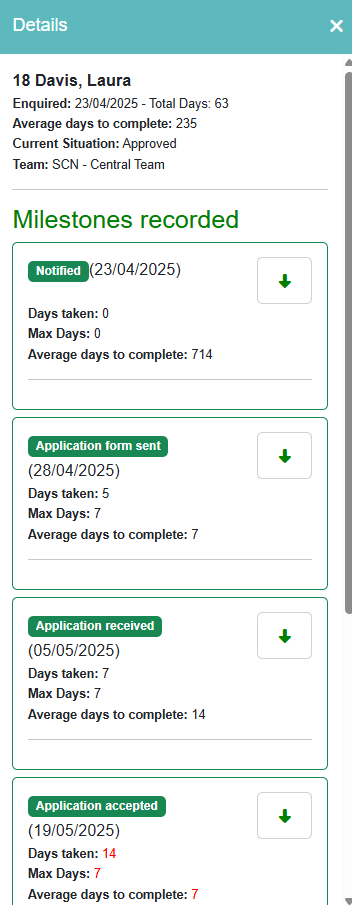
For further detail on this feature and to learn how to setup/define which actions should be output on the widget, please see our Recruitment widget page.